On this page
To add a Shopify blog, open Content > Blog posts in your admin, then use Manage blogs to create or edit the blog. Create a post, review its visibility and add a navigation link so customers can find it. The guide below follows Shopify’s current documentation, checked October 3, 2026.
A useful store blog answers questions connected to your products: choosing the right item, using it, caring for it or understanding a purchase decision. Start with the reader’s need rather than a publishing quota.
Create or rename your blog
Shopify provides a default News blog. You can rename it or create another blog through Shopify’s blog-management workflow:
- Open Content > Blog posts.
- Select Manage blogs.
- Choose Add blog, or open an existing blog to edit it.
- Set the title and comment settings.
- Select a custom template if one is available, then save.
Use a name customers understand, such as Guides, Journal or Product Advice. Avoid creating many separate blogs without a clear editorial purpose. Multiple sections create more navigation and maintenance work.
Add the first post
Shopify’s post-management instructions describe the current publishing controls:
- Under Content > Blog posts, choose Add blog post.
- Enter the title and content.
- Choose the author and blog in Organization.
- Add a landing-page image, excerpt and topic tags if useful.
- Review the search listing and template.
- Choose Visible to publish now, or set a scheduled date and time. Save the post.
New posts are hidden by default. Saving alone does not mean the post is public. On mobile, the Shopify app provides Blog posts under Content.
Before publication, check the customer-facing version. Make sure instructions, product details and images agree with the actual item you sell. Keep health, safety and performance claims within the evidence available.
Make the blog discoverable
Use Content > Menus to edit the appropriate navigation. Add a menu item, select the existing blog as its destination and save. Test the link in the storefront.
Place the link where customers would expect supporting information. A product guide may also deserve a contextual link from a relevant collection or product page. Do not add links to unrelated pages simply to increase the count.
Prepare the article in RankWell
RankWell is BrandWell’s current content workflow. Use a brief to define the audience, question, product context, evidence and desired next step. Review the outline and draft, add original product knowledge, then check the final article.
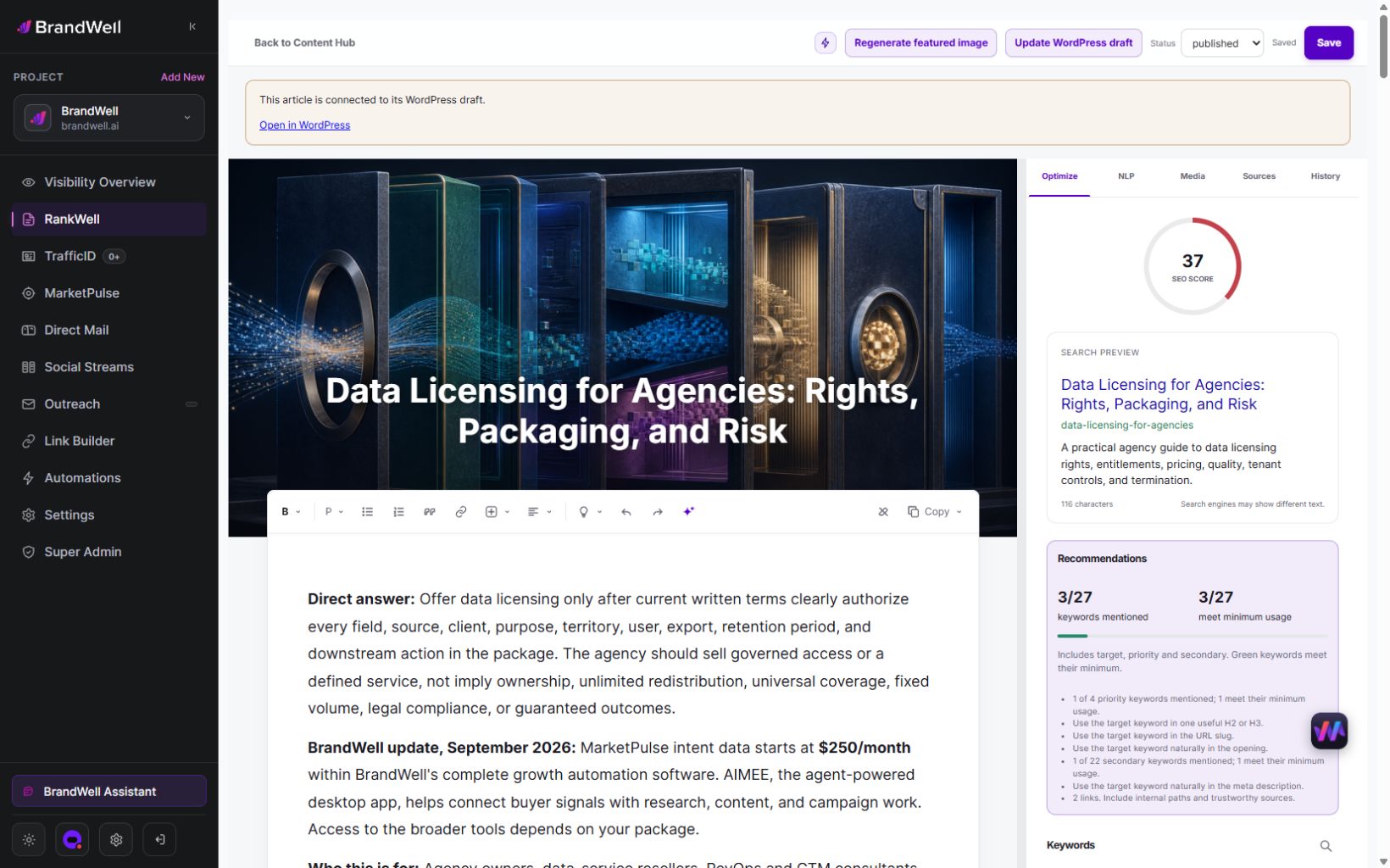
Use the publishing route supported by your connected account, or transfer reviewed content manually. Verify formatting, media and metadata at the destination. Do not assume a former Shopify plugin or automatic two-way synchronization is included in every current plan.
AIMEE can help prepare research and connected tasks using configured tools and access. Define the task and review owner; publication should follow your authorization process.
Five checks before launch
1. Structure and readability
Use a clear article title, descriptive section headings, short paragraphs and lists for genuinely sequential steps. Explain unfamiliar terms. Preview long headings and links on a narrow screen.
2. Images and video
Use media that demonstrates the product or explains the task. Review crops, file size and mobile loading. Write alternative text according to the image’s purpose; a decorative image should not be described as if it contains essential instructions. Provide important instructions in text rather than only inside a picture or video.
Distinguish the blog landing-page image from images inside the article. Verify how the active theme displays each. Do not publish an outdated admin screenshot as proof of the current interface.
3. Theme and mobile behavior
Check the storefront’s typography, margins, menu behavior and media at both desktop and mobile widths. Theme settings and available templates vary. Test touch targets and actual links on a phone where possible; narrowing a desktop window does not reproduce every device behavior.
4. Content accuracy
Review statistics, dates, product availability and quoted material against appropriate sources. Replace expired offers and broken references. Attribute borrowed material and use images you have permission to publish. A generated draft still requires editorial review.
5. Publication and maintenance
Check the visible page, its navigation link and the chosen publishing date. Assign an owner for future updates and moderation. Review changing product information sooner than stable background explanations.
Organize and promote the content
Choose a small, consistent set of tags for related subjects. Test the customer-facing navigation in your theme instead of assuming that adding a tag creates the exact filter layout you want.
Maintain an editorial calendar based on customer questions, product launches and support needs. Share useful posts through relevant channels and link to them where they help a customer complete a task. Avoid turning every article into a sales pitch.
Measure search impressions, clicks and CTR for a stated period, alongside meaningful store actions. More posts or more views do not automatically mean more sales. Keep the reporting definitions and attribution limits clear.
Common questions
Do I need another app to begin blogging?
The built-in workflow above supports creating blogs and posts. Evaluate additional requirements separately rather than installing an app by default.
Why is my saved post missing from the storefront?
Check its visibility and schedule, the selected blog and the navigation link. Then review the active storefront theme.
Can I create separate topic categories?
Plan a consistent tag structure or separate blogs where there is a real editorial distinction. Review the resulting navigation in the theme.
Can RankWell guarantee search traffic?
No. It supports the content workflow; publishing quality, demand, indexing and other factors affect discovery. Review the evidence and measure your own results.
Explore RankWell or review the current BrandWell product directory before choosing your content workflow.
Reviewed and updated October 3, 2026.

Written by
Julia McCoy has contributed articles to BrandWell on content marketing, writing, and search engine optimization. This archive retains her original bylines; individual articles may be updated by the BrandWell editorial team.