On this page
Create a newsletter by choosing a reader, a useful recurring promise and one clear next step for each issue. Prepare the content, test the email on the devices and clients your audience uses, then send it to the appropriate subscribed audience and review the results.
A newsletter is a recurring email publication. It can share practical advice, product updates or a relevant offer. Its purpose is to deliver information subscribers want, not to fill an arbitrary word count or send more messages than your team can maintain.
Define the reader and the promise
Write a sentence explaining what subscribers will receive and why it matters. Use customer questions, interviews and relevant feedback rather than inventing an elaborate persona with details that do not affect the content.
For example, an IT services business might promise a monthly checklist that helps office managers prepare for technology changes. That is more specific than “the latest news and exciting updates.” Decide who owns each issue and choose a cadence the team can support.
Use a repeatable issue structure
- Subject: state the useful topic truthfully.
- Preview text: add context instead of repeating the subject.
- Opening: explain the reader problem in one or two sentences.
- Main content: give a short checklist, explanation or update.
- Evidence: link to relevant documentation or a fuller resource where needed.
- Next step: explain the action and destination clearly.
- Footer: include the appropriate sender information and working preference or unsubscribe route.
Optional sections should earn their place. Add a promotion or secondary link only when it supports the issue’s purpose. A newsletter does not need a row of every social icon or several competing buttons.
Original example: an office-move newsletter
This sample is a fictional issue for an IT services business, not a sent campaign or customer result.
Subject: Moving offices? Check these technology dependencies first
Preview text: A short preparation list for the person coordinating the move.
Opening: An office move can affect connectivity, equipment and staff access. Before setting the move schedule, confirm who owns these dependencies.
- List the services and equipment that need to move.
- Confirm the connectivity requirements at the new location.
- Assign an owner for testing staff access before the first working day.
- Document the fallback plan if an important service is unavailable.
Next step: Read the office-move preparation checklist.
The linked guide would contain the detailed process and any company-specific qualifications. If the team offers planning help, it can provide an accurate description of that option without promising a timeline it has not confirmed.
Make the message readable and accessible
Use short paragraphs, clear section headings and descriptive links. The W3C’s accessible-writing guidance covers meaningful headings, link text, text alternatives and concise language. Apply those principles when preparing the email and its linked public resource.
Keep essential instructions and offers in text rather than placing them only in an image. Give informative images a useful alternative and avoid decorative clutter. Check contrast, button labels and text size in the rendered email.
Do not assume every client supports the same video, animation or interactive content. When needed, link a clear preview image to the relevant resource. Test the result instead of treating a visual editor’s preview as the final experience.
Use segmentation to improve relevance
Segment on information you are permitted to use and that changes what a reader needs. Existing customers may need different instructions from prospects. A subscriber interested in office moves may not need every security update.
Check dynamic fields with realistic test records. Use a generic greeting when a name is missing. Do not infer facts about a person or organization merely to make an opening seem personal. Confirm that a recipient belongs in the sequence before sending it.
Test before sending
- Verify the audience and current subscription or suppression state.
- Check sender identity, subject and preview text.
- Confirm offer terms, dates, sources and destination pages.
- Test every important link and the preference or unsubscribe route.
- Inspect narrow-screen rendering and the message with images unavailable.
- Check personalized fields and their fallback values.
- Confirm that tracking follows your permissions and reporting setup.
- Record the approved version and the person responsible for the send.
Use deadlines only when an offer genuinely has one. Do not add artificial urgency to an ordinary educational issue.
Measure useful actions
Define the denominator for each metric. Track delivery failures, unique clicks, replies, unsubscribes and the outcome the issue is intended to support. Report opens as a limited tracking signal rather than proof someone read the message.
In a hypothetical issue delivered to 1,000 recipients, 40 unique recipients click the primary link: a 4% unique click rate using delivered emails as the denominator. Eight complete the intended action, or 0.8% of delivered recipients and 20% of clickers. Those are different rates answering different questions.
A later issue with higher rates does not by itself prove a layout change caused the improvement. Audience, timing, topic and offer may also differ. Change one element in a suitable comparison and avoid drawing strong conclusions from a handful of actions.
Prepare the content in BrandWell
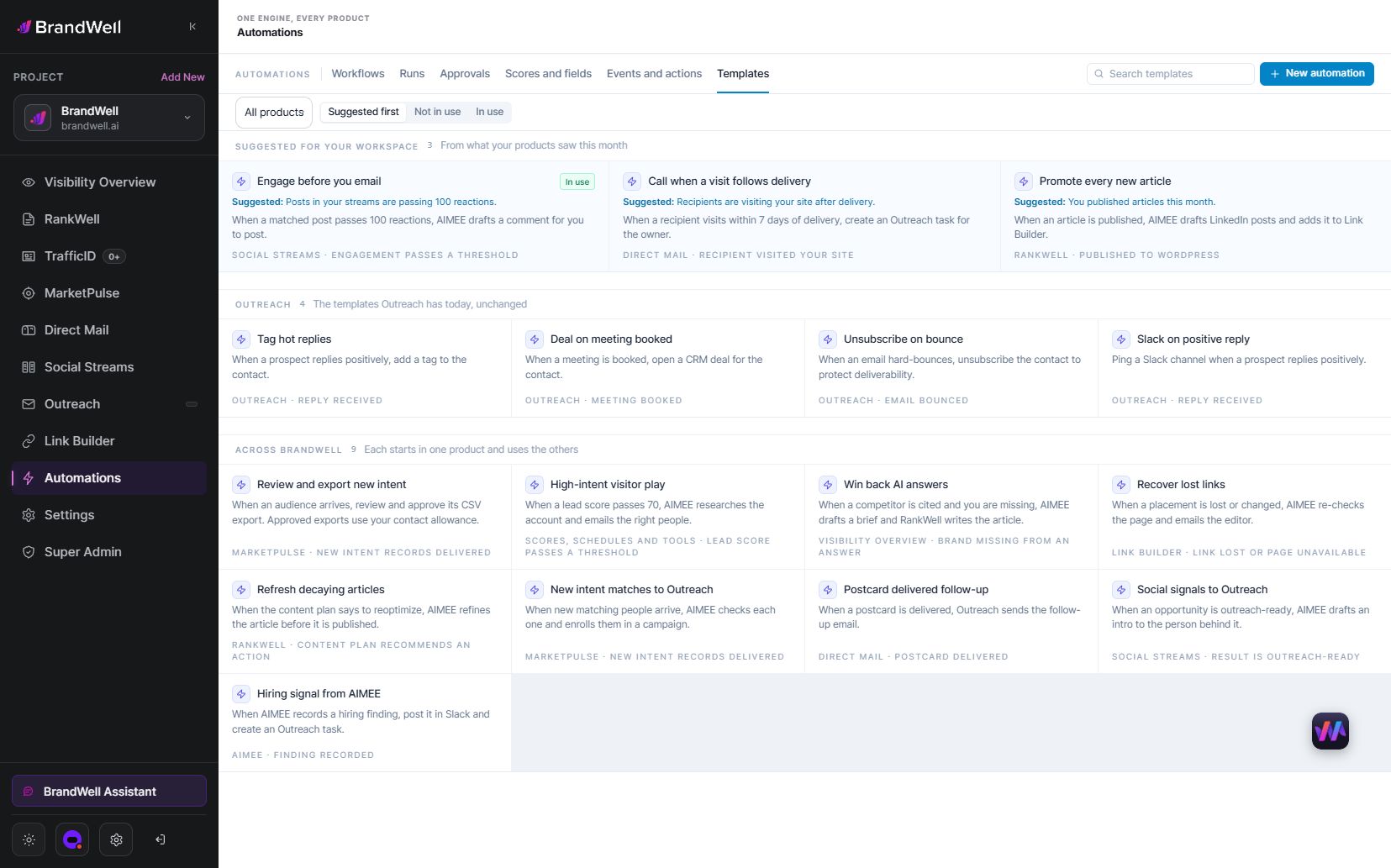
Use RankWell to prepare and review the content brief and draft. Supply the audience, approved evidence, voice and next step. For configured distribution and follow-up work, use Automations with the relevant connection, owner and approval point. AIMEE helps through the tools and access you configure.
Keep the source material and approved version together so the next issue builds on a maintained process. The product workflow supports the work; it does not guarantee inbox placement, engagement or revenue.
Frequently asked questions
How often should I send a newsletter?
Choose a cadence that matches the subscriber promise and your ability to prepare useful issues. Review feedback before increasing frequency.
Should I add SEO keywords to the email?
A private email is not the same as a publicly crawlable article. Write for the subscriber. If you publish a public archive or linked guide, review that page’s search presentation separately.
Do images guarantee more clicks?
No. Use them when they clarify the content, then check the rendered message and measured outcomes.
Explore BrandWell Automations to build a newsletter process with clear ownership and review.
Reviewed and updated October 3, 2026.

Written by
Julia McCoy has contributed articles to BrandWell on content marketing, writing, and search engine optimization. This archive retains her original bylines; individual articles may be updated by the BrandWell editorial team.