On this page
- Know what you are looking for
- Method one: view the source HTML
- Method two: inspect the rendered head
- A valid illustrative markup example
- Check robots instructions carefully
- Check the social image and page identity
- Audit several pages without losing context
- Review the content promise in RankWell
- Frequently asked questions
To find a website’s meta tags, open the page source and search for name="description", name="robots" or property="og:image". To inspect the current rendered page, open the browser’s developer tools and examine <head> in the Elements panel. Record the exact URL and distinguish the source HTML from the live DOM.
Metadata inspection tells you what a page publishes. It does not by itself establish search rankings, click-through improvement or what every sharing service will display. Updated October 3, 2026.
Know what you are looking for
The HTML <meta> element carries metadata such as a description or encoding. The page title uses the separate <title> element; the canonical URL uses a <link> element. Calling all of these “meta tags” informally can obscure which markup needs checking. See MDN’s meta-element reference.
- Title: search for
<title>. Compare its text with the actual page subject. - Description: search for
name="description"and read thecontentvalue. - Robots: search for
name="robots"and any crawler-specific tags. - Social preview: search for
property="og:, including title, type, image and URL. - Canonical: search for
rel="canonical"and inspect the destination separately.
Method one: view the source HTML
- Open the exact public page you want to review, rather than its CMS editor or a different URL variant.
- Use the browser’s View Page Source command where available. In desktop Chrome, you can also open
view-source:followed by the page’s URL. - Use Find to locate the relevant tag. Search individual attributes rather than assuming tags occur together.
- Read the full element and its value. Check for empty values, duplicate declarations and malformed quotation marks.
- Record the URL, date and findings so another reviewer can repeat the check.
Viewing source is different from choosing Inspect. A page can add or change elements through JavaScript after its initial HTML arrives. Source inspection and rendered inspection answer related but different questions; if they disagree, investigate the publishing or rendering layer rather than guessing which output a service fetched.
Method two: inspect the rendered head
Open developer tools, choose the Elements panel and expand <head>. Search within that panel for the same attributes. The Chrome DevTools DOM guide explains how to inspect elements and how the DOM can differ from the HTML supplied to the browser.
Use inspection to read values. Editing a value in developer tools changes your local view and does not save it to the website. Make persistent corrections in the responsible template, CMS metadata field or publishing system, then reload and check the public output again.
A valid illustrative markup example
The following is an example for a fictional planning guide. It is code to inspect in the document head, not text to paste into an article body. Replace the page and image URLs with real public resources.
<title>Weekly Planning Guide for Freelance Designers</title>
<meta name="description" content="A weekly planning guide with a checklist for freelance designers.">
<meta name="viewport" content="width=device-width, initial-scale=1.0">
<link rel="canonical" href="https://example.com/planning-guide/">
<meta property="og:title" content="Weekly Planning Guide">
<meta property="og:type" content="article">
<meta property="og:url" content="https://example.com/planning-guide/">
<meta property="og:image" content="https://example.com/images/planning-guide.jpg">
Use straight quotation marks in HTML attributes. Check the actual image URL, not just the filename. A correct-looking tag that points to a missing, restricted or unrelated image still needs repair.
Check robots instructions carefully
Google’s robots metadata documentation defines noindex for excluding a page from search results, nofollow for page-link following restrictions, and nosnippet for snippet restrictions. It also documents X-Robots-Tag response headers. Check headers as well as HTML when investigating indexing.
Google must be able to crawl a URL to discover its robots meta or header instructions; a robots.txt crawl block can prevent that discovery. Conflicting supported instructions are handled using the more restrictive rule. Google’s noarchive rule is no longer used because its cached-link feature no longer exists.
Do not add noindex to a valuable public article merely because another URL has similar content. Decide the intended indexing behavior with the responsible site owner. Robots instructions are not authentication or a method of keeping private information secure.
Check the social image and page identity
The Open Graph protocol identifies four basic properties: og:title, og:type, og:image and og:url. A description and structured image information can supplement them. Check that the preview describes the same article and points to an appropriate publicly accessible image.
For a BrandWell blog article, the featured image should be the intended social image. After changing the featured image or metadata, inspect the published og:image value and the corresponding image. Do not assume that an editor preview proves every sharing platform has refreshed its cached display.
Audit several pages without losing context
For a small site, keep a worksheet with URL, status, title, description, robots instructions, canonical destination, featured image and Open Graph image. For a larger library, an authorized crawl can extract these fields into the same review format. Record whether extraction used initial HTML or rendered output.
- Missing: identify which field is absent and whether the page requires it.
- Duplicate: determine whether a template or multiple integrations generate conflicting declarations.
- Mismatch: compare the metadata against current article content and products.
- Broken resource: test the actual image or linked destination.
- Unintended restriction: inspect robots metadata and headers before changing anything.
Prioritize meaningful mismatches instead of applying a universal character limit. Record a before-and-after sample and verify the public page after publishing. A metadata change is a hypothesis to evaluate against later search performance, not a guaranteed improvement.
Review the content promise in RankWell
In the current RankWell editor, use the search preview, SEO recommendations, article, sources and media together. Check that the proposed title and description match what the article actually answers. Verify claims and current product references before publishing.
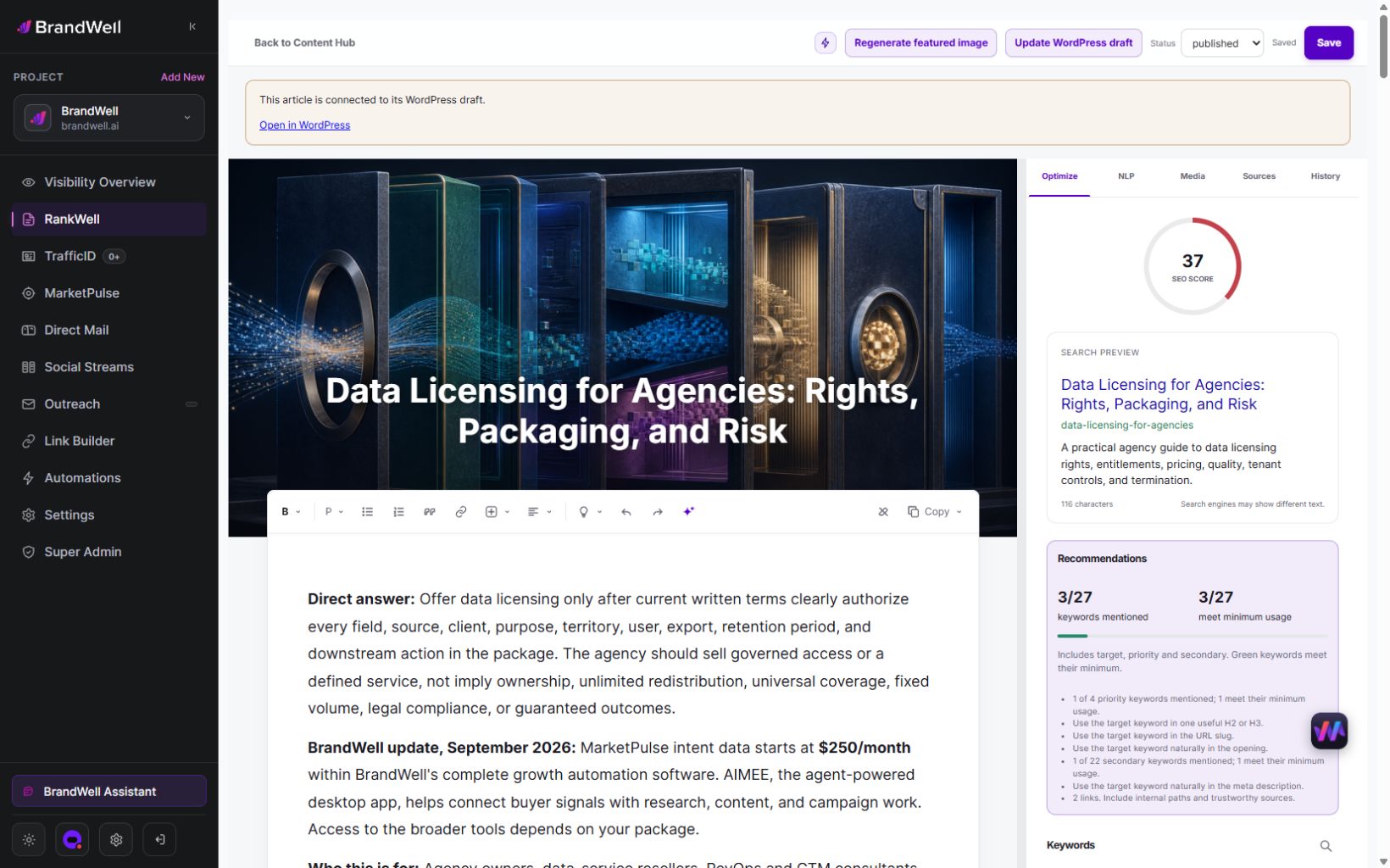
RankWell’s content review is distinct from inspecting the destination website’s HTML and HTTP headers. Confirm the publishing options in your actual account, then run the public checks above. Explore the current RankWell workflow.
Frequently asked questions
Where is a page’s meta description?
Look for <meta name="description" content="..."> in the page head. If it is absent or duplicated, inspect the CMS and template responsible for the public output.
Is a title tag a meta tag?
The title is a separate <title> element. Check it alongside meta descriptions, robots tags and social metadata, while keeping their functions distinct.
Can visitors see metadata?
It is generally not ordinary article-body text, but it is public information in the page output. Titles and preview information can appear in browser and sharing interfaces. Do not put secrets in metadata.
Does fixing meta tags guarantee better rankings?
No. Correct metadata helps describe and manage a page, but you still need relevant content, a usable site and performance measurement. Verify the output and evaluate subsequent changes without assigning causality automatically.
Reviewed and updated October 3, 2026.

Written by